
IMTEX APP GUIDE
Add Tracks to a Playlist
Add music and practice materials to a playlist.
1 Open a Playlist
Open Playlists and select the playlist you want to edit.
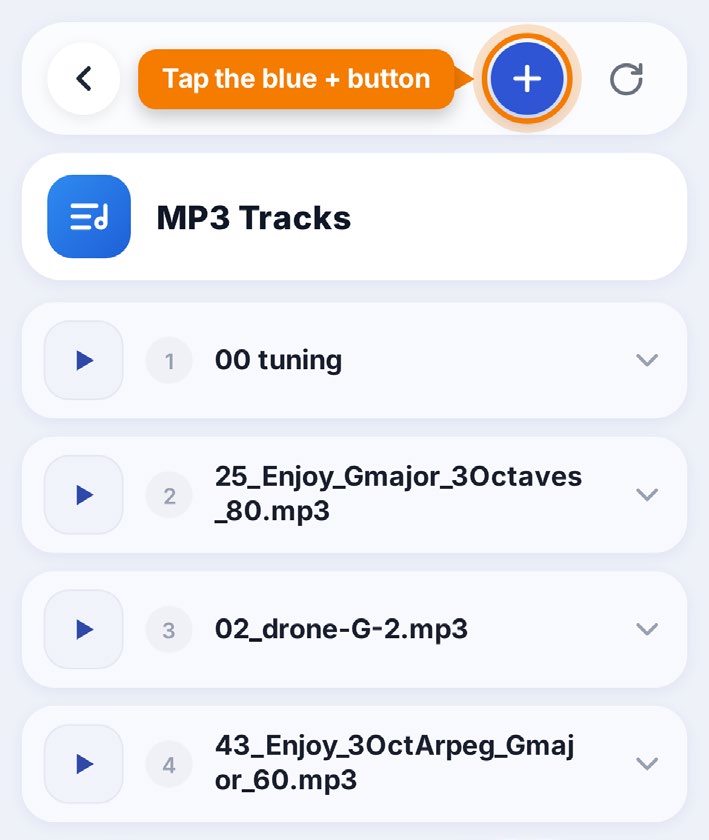
2 Tap the Blue + Button
Tap the blue + button in the upper-right corner to add a track.
3 Choose Library or Playlists
Choose Library or Playlists to find the track you want to add.
4 Search for Tracks
Use the search field to find music or practice materials.
For example, search for:
- Violin 1A
- Note Reading
- Practice Chain
- Name of a Piece
- Composer's Name
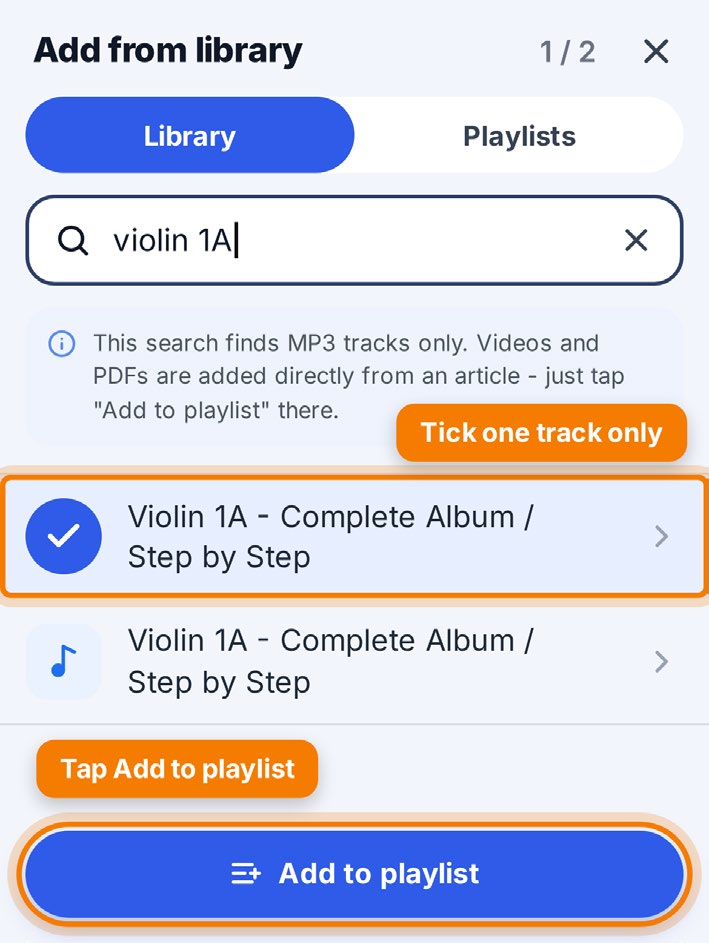
Good to know: The search finds MP3 audio tracks only. To add a video or PDF, open the corresponding article and tap Add to Playlist.
5 Select a Track
Tap the circle next to the track you want to add.
Select only one track at a time.
6 Add the Track
Tap Add to playlist to add the selected track.
To add more tracks, tap the blue + button again and repeat the steps.